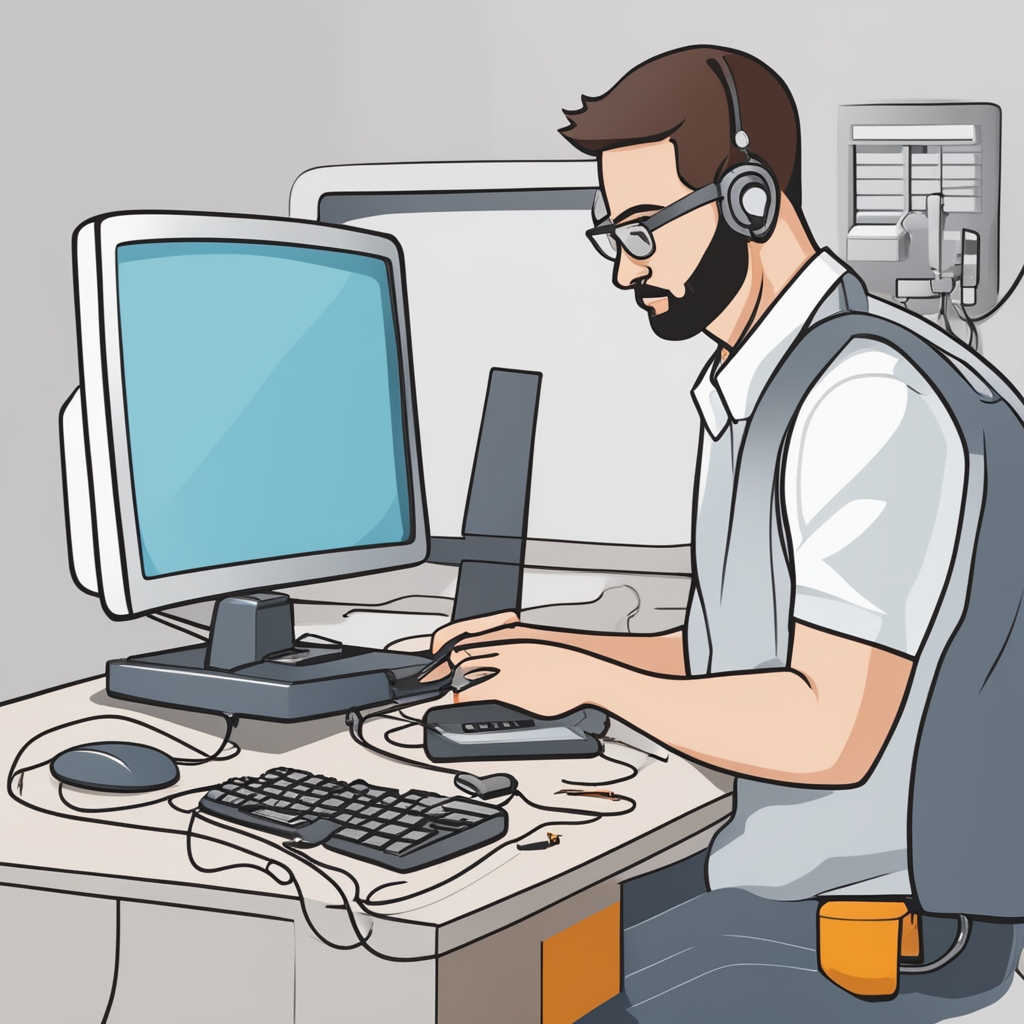
Regular maintenance of your computer is crucial for ensuring optimal performance and longevity. This article outlines essential tasks to keep your system running smoothly, including updates and cleaning.
Why Computer Maintenance Matters
Proper computer maintenance helps prevent issues such as slow performance, crashes, and data loss. Regular upkeep can extend the lifespan of your hardware and software, allowing you to maximize your investment.
Essential Maintenance Tasks
1. Perform Regular System Updates
Operating System Updates: Ensure your operating system (OS) is up to date. Updates often include security patches, bug fixes, and new features. Set your OS to automatically download and install updates whenever possible.
Software Updates: Regularly update your applications and drivers. Outdated software can be vulnerable to security threats and may not function efficiently.
2. Clean Your Computer Hardware
Dust Removal: Dust accumulation can cause overheating and hardware failures. Regularly clean your computer's exterior and interior, especially fans and vents. Use compressed air to blow out dust from keyboards, case fans, and cooling systems.
Surface Cleaning: Wipe down your monitor, keyboard, and mouse with appropriate cleaning solutions. Avoid using harsh chemicals that may damage the surfaces.
3. Manage Your Hard Drive
Disk Cleanup: Use built-in disk cleanup tools to remove unnecessary files and temporary data. This can free up valuable storage space and improve system performance.
Defragmentation: For traditional hard drives (HDDs), regular defragmentation can help organize data efficiently, improving access times. Note that this is unnecessary for solid-state drives (SSDs), which use a different storage technology.
4. Run Antivirus and Anti-Malware Scans
Install Security Software: Protect your computer from malware and viruses by using reliable antivirus software. Ensure it’s always up to date.
Regular Scans: Schedule regular scans to check for and remove any threats. Real-time protection is also recommended to prevent infections.
5. Backup Your Data Regularly
Choose a Backup Solution: Use an external hard drive, cloud storage, or a combination of both for backups. This protects your data against hardware failures or accidental deletions.
Automate Backups: Set up automatic backups to ensure your important files are consistently saved without needing manual intervention.
6. Check System Performance
Monitor Resource Usage: Use Task Manager (Windows) or Activity Monitor (Mac) to monitor resource usage. Look for applications consuming excessive CPU or memory and close them if necessary.
Optimize Startup Programs: Disable unnecessary startup programs that slow down your boot time. This can be managed through system settings.
7. Perform Hardware Checks
Test Your Components: Regularly check the health of your hard drive, RAM, and other components using diagnostic tools. This helps identify potential issues before they escalate.
Replace Aging Parts: Consider upgrading components such as RAM or storage if your computer struggles with performance. Newer hardware can significantly enhance speed and efficiency.
Conclusion
Regular computer maintenance is vital for keeping your system running smoothly and efficiently. By following these essential tasks, you can prevent performance issues, enhance security, and extend the lifespan of your computer. Make it a habit to check for updates, clean your hardware, manage your storage, and back up your data. With these practices, you’ll ensure a reliable and efficient computing experience for years to come.
For further assistance with computer maintenance or technical support, feel free to reach out to EB IT Support LTD.


